How to invite new organization members to the Console
Last updated: July 17, 2026
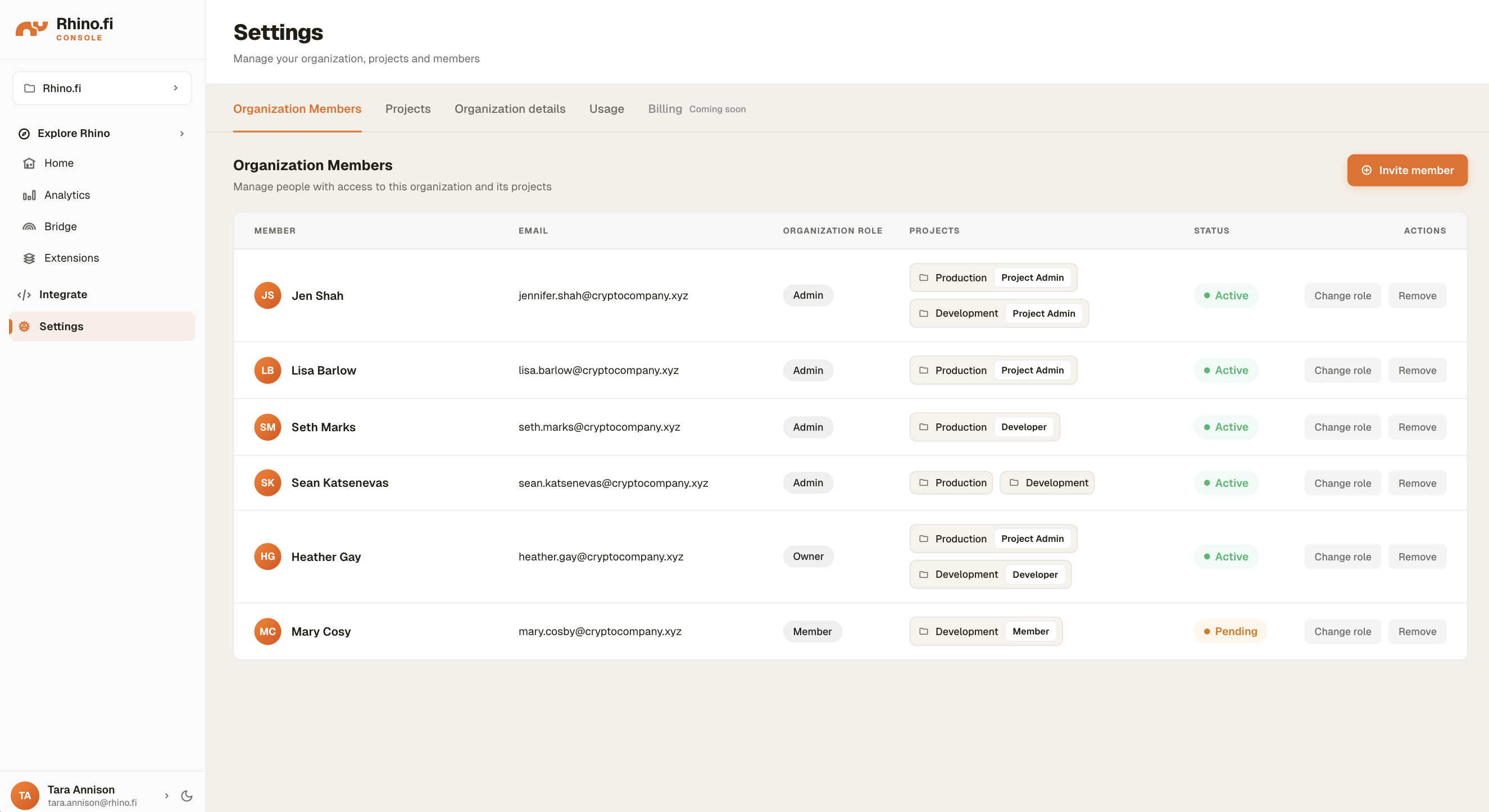
Within the 'Settings' section of the Console, the 'Organization Members' tab shows the list of all current organization members who have access to the Console.
Inviting a new member
By selecting the orange 'Invite member' button at the top right of the organization members table, you are able to enter the details of the user you would like to invite. You must select their organization role level, and assign them to one or more projects - also with a project role assigned.
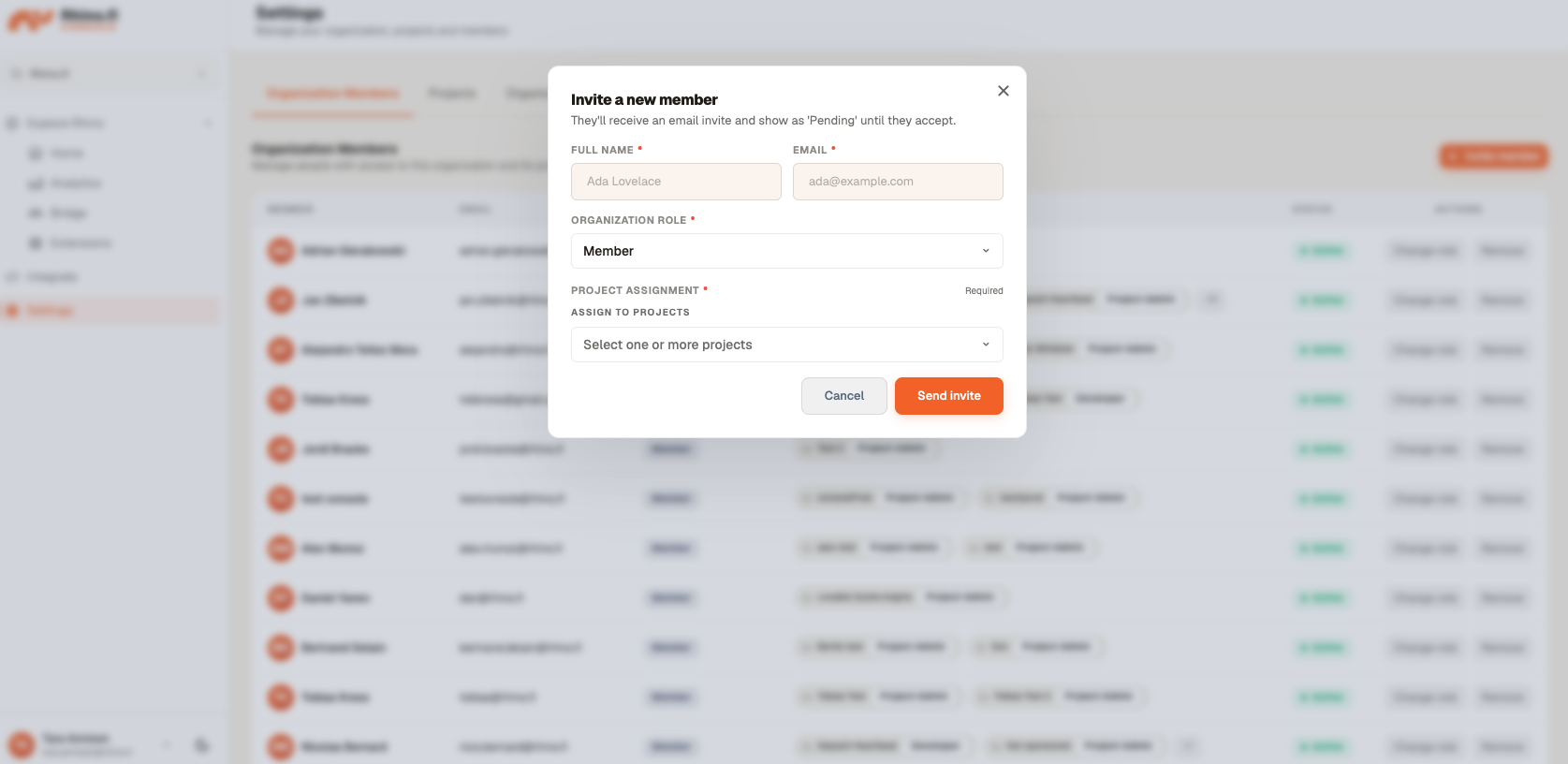
To understand the different organization level and project level roles, please read this Knowledge Base article:
Once a member is invited, their status will show as pending until they accept the invite via the email they will have been sent.
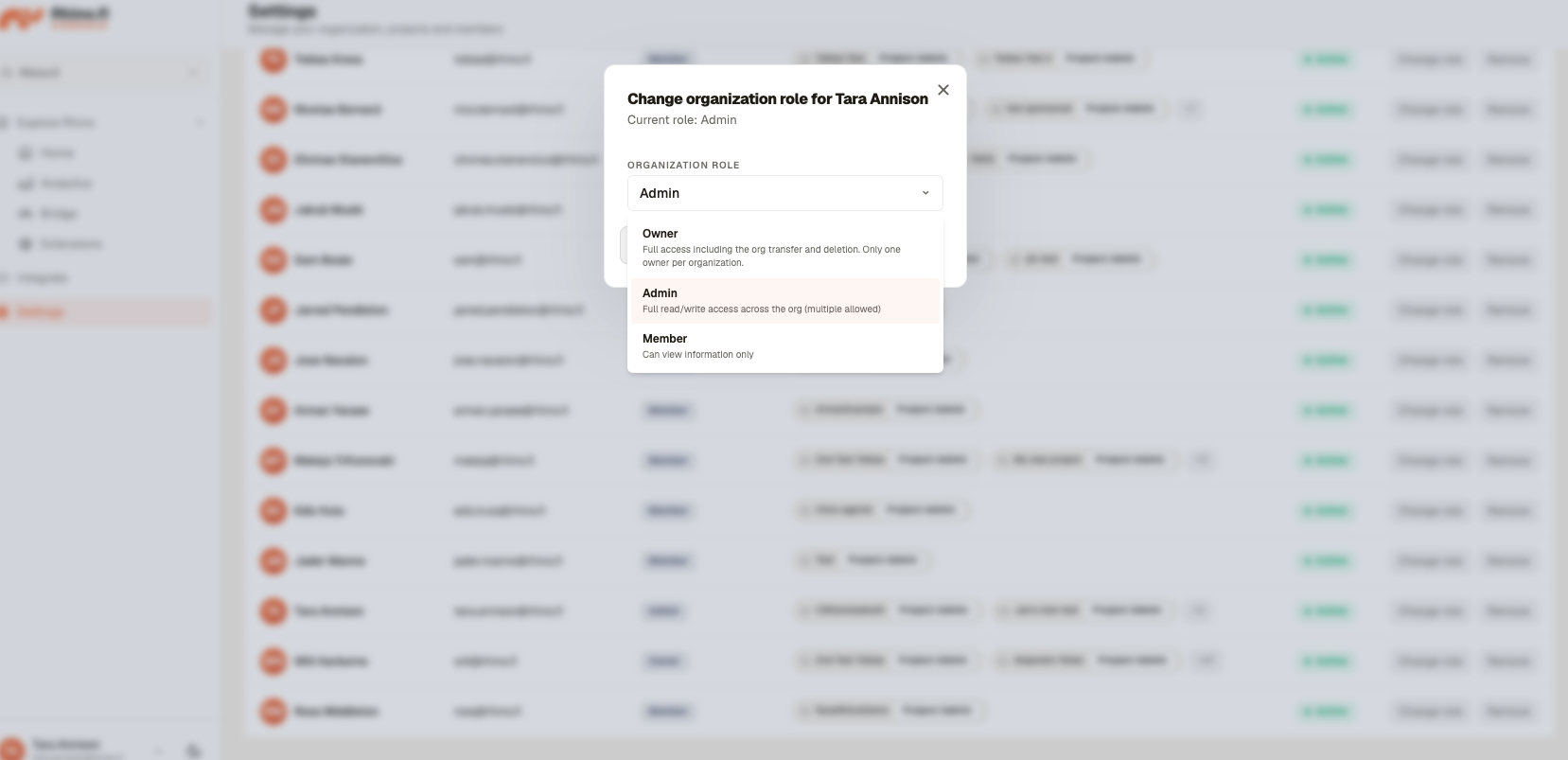
Changing the Organization Role of the user
By selecting the 'Change Role' action button, the user's organization role can be changed.